

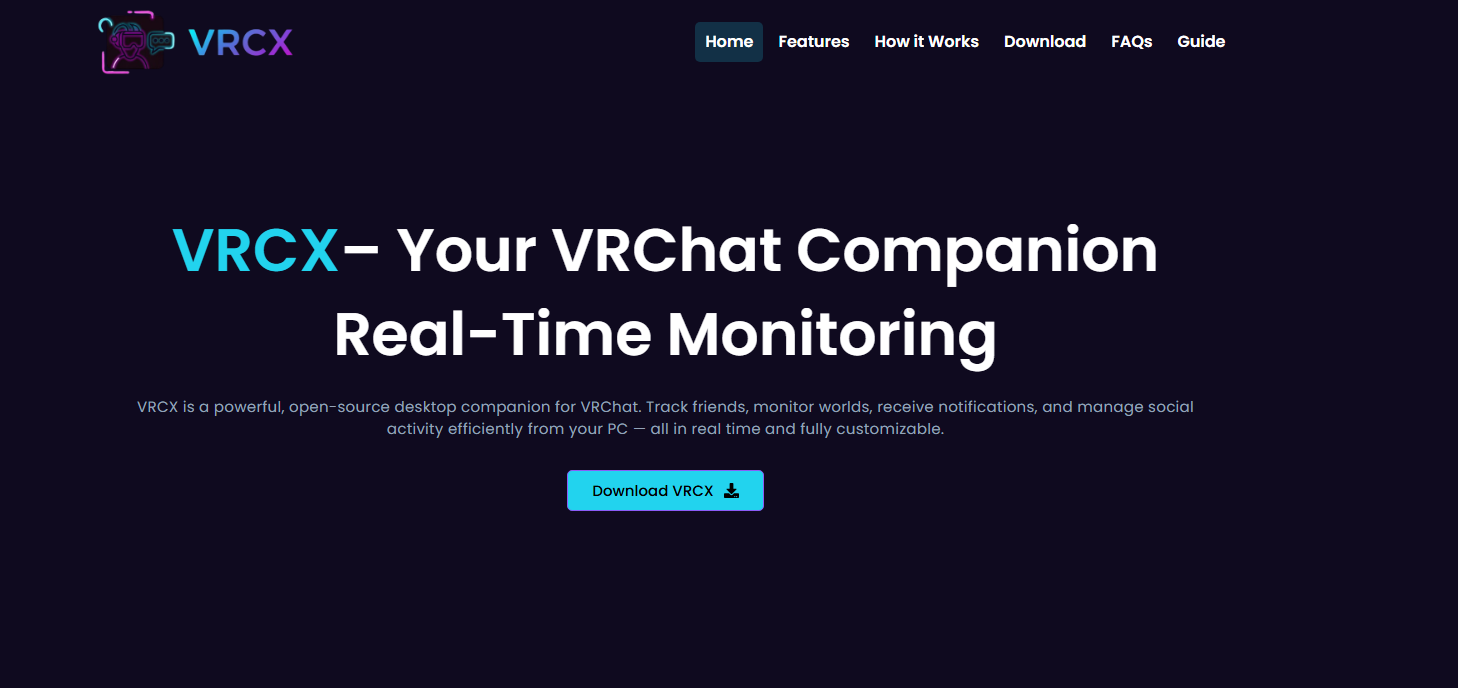
VRCX is a popular companion application designed for users of VRChat. It helps players manage friends, monitor logs, track instances, and access many advanced features that are not directly available inside the game. Because the software receives regular improvements, bug fixes, and security updates, keeping VRCX updated to the latest version is extremely important for smooth performance and compatibility.
Many users experience issues simply because they continue using an outdated version of the application. Updating ensures better stability, access to newly released tools, improved user interface elements, and support for the latest VRChat changes. The process is generally simple, but some users may still encounter confusion depending on how they originally installed the software.
This guide explains everything you need to know about updating VRCX to the latest version safely and correctly.
Why Updating VRCX Matters
Software developers frequently release updates to improve functionality and solve problems reported by users. VRCX is actively maintained, which means updates often include performance optimizations, security enhancements, and compatibility fixes for changes introduced by VRChat.
When you continue using an old version, several problems may appear. The application may stop syncing properly with VRChat, some features may stop working, or the interface may behave unexpectedly. In some situations, older versions can even cause login problems or errors when trying to connect to online services.
Updating also gives you access to the newest features introduced by the development team. Many users rely on VRCX for friend management, notifications, avatar tracking, and advanced social monitoring. New releases often improve these tools significantly.
Another important reason to update is security. Modern software updates frequently patch vulnerabilities and improve account protection. Running the latest version reduces the chance of encountering known issues that may affect performance or privacy.
Checking Your Current VRCX Version
Before updating, it is helpful to know which version you currently have installed. Open VRCX on your computer and look for the settings or about section inside the application. Most versions display the current release number somewhere in the interface.
Comparing your installed version with the newest available release helps you determine whether an update is necessary. Sometimes users already have automatic updates enabled and may already be running the latest build.
If you are experiencing crashes or unusual behavior, checking the version number can also help identify whether the issue has already been fixed in a newer release.
Updating VRCX Automatically
The easiest way to update VRCX is through the built-in updater. Most modern installations support automatic update detection. When a new version becomes available, the application usually displays a notification informing you about the update.
If you receive the notification, simply follow the on-screen instructions. The application may download the update automatically and restart once the installation is complete. This method is recommended because it minimizes the chance of installation errors.
Automatic updates are especially useful for users who regularly use VRChat and want uninterrupted compatibility. Enabling automatic updates ensures that future versions install with minimal effort.
In many cases, the updater preserves your settings, login information, and preferences, so you do not need to configure everything again after updating.
Manually Downloading the Latest Version
Some users prefer manual installation, especially if the automatic updater fails or if they want a clean installation. To manually update VRCX, visit the official release page and download the newest installer.
The safest source is the official GitHub repository maintained by the developers. Downloading from unofficial websites may expose your computer to modified or unsafe files. Always verify that you are using the authentic release.
After downloading the installer, close VRCX completely before running the new setup file. Installing while the application is open may cause update conflicts or incomplete file replacement.
The installer typically replaces older program files automatically while preserving your settings. Once installation finishes, launch the application again and confirm that the version number has changed to the latest release.
Solving Common Update Problems
Although updating VRCX is usually straightforward, some users encounter issues during the process. One common problem is the updater failing to download files. This can happen because of firewall restrictions, antivirus interference, or unstable internet connections.
If the automatic update fails repeatedly, manual installation is often the best solution. Downloading the latest installer directly usually resolves most updater-related issues.
Another common issue occurs when VRCX refuses to launch after updating. In many situations, restarting the computer solves the problem because background processes from the previous version may still be active.
Some antivirus programs may incorrectly flag VRCX files during installation. If this happens, temporarily allowing the application through your antivirus software may help. However, you should only do this if you downloaded the installer from the official source.
Users may also encounter compatibility problems if their operating system is outdated. Keeping Windows updated can improve application stability and prevent installation errors.
Keeping Your Settings Safe
Before performing major updates, creating a backup of important settings is a smart precaution. While VRCX updates rarely remove user data, backups provide extra protection in case something unexpected happens.
Many users customize notification settings, interface preferences, and logging options extensively. Saving configuration files ensures these preferences can be restored easily if needed.
If you decide to completely reinstall VRCX, backing up data becomes even more important. A fresh installation sometimes removes locally stored information depending on the installation method used.
Cloud backup services or simple copies of configuration folders can help preserve important settings safely.
Best Practices for Future Updates
Keeping VRCX updated regularly is the best way to avoid compatibility issues with VRChat. Instead of waiting several months between updates, installing new releases shortly after they become available helps maintain stable performance.
Following official developer announcements can also help you stay informed about major changes. Some updates introduce significant improvements or require additional setup steps. Reading release notes provides useful information about new features and bug fixes.
Avoid downloading modified versions of VRCX from unknown websites. Official releases are safer and more reliable. Third-party modifications can create instability, security risks, or account-related problems.
Maintaining good computer performance also contributes to smoother updates. Keeping sufficient storage space available and updating Windows drivers can reduce installation errors.
Conclusion
Updating VRCX to the latest version is an important part of maintaining a smooth and reliable VRChat experience. Regular updates improve performance, fix bugs, introduce new features, and enhance security.
Most users can update quickly using the built-in updater, while manual installation remains a reliable alternative if problems occur. Taking precautions such as backing up settings and downloading files only from official sources helps ensure a safe update process.
By keeping VRCX current, users can enjoy improved functionality, better compatibility, and a more stable overall experience while exploring the world of VRChat.
